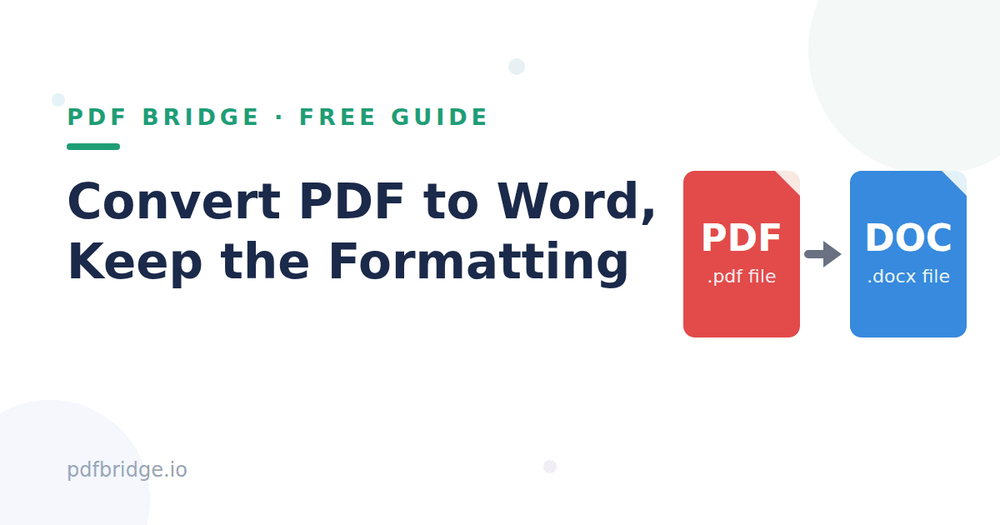
You converted a PDF to Word, opened the file, and… the tables are broken, fonts changed, images jumped to the wrong page. Sound familiar? Converting PDF to Word without losing formatting is absolutely possible — you just need the right approach. Here's how.
Why formatting breaks in the first place
A PDF is a frozen picture of your document — text, images and layout locked in place. Word files are editable and fluid. When a converter turns that frozen picture back into editable text, it has to guess the structure: which text is a heading, what's part of a table, where a paragraph breaks. Cheap converters guess badly. Good ones reconstruct carefully.
Step 1: Start with a clean PDF
The quality of your Word file depends on the PDF you feed in. A PDF exported directly from Word or another program converts beautifully. A scanned photo of a document is much harder — it needs OCR first. So: always use the original digital PDF if you have one.
Step 2: Use a converter that preserves layout
Open PDF Bridge's PDF to Word converter and upload your file. A good converter keeps your headings, paragraphs, tables, bullet lists and images in their original positions — so the Word file looks like the PDF, not like a rough copy of it.
Step 3: Download and do a quick check
Download the .docx file and skim through it. Check tables, page breaks and any special characters. Most documents come out 95% perfect — you might just need to fix one odd line break or re-align a single image.
What converts well (and what doesn't)
Converts beautifully: reports and letters with standard text and headings, tables with clear borders, documents with embedded images, bullet and numbered lists. Needs extra care: scanned documents (use OCR first), documents with unusual fonts (Word substitutes the closest match), complex multi-column magazine layouts, forms with fillable fields (these may flatten into plain text).
Tips for the cleanest conversion
Work from the original PDF, not a scan, whenever possible. If your PDF has selectable text (you can highlight it), the conversion will be near-perfect. For scanned pages, make sure the scan is straight, sharp and well-lit — that gives OCR the best chance. If the Word file has one broken table, fixing that one table by hand is still ten times faster than retyping the whole document.
Why not just copy-paste?
For a one-page simple letter, copy-paste works fine. For anything with tables, images, headers and footers — a real converter saves you an hour of reformatting. Copy-paste loses table structure entirely; a converter rebuilds it.
Related tools: PDF to Word converter, Word to PDF converter, Edit PDF online free
Frequently Asked Questions
Is converting PDF to Word free?
Yes — PDF Bridge's free plan covers PDF-to-Word conversion within the daily document limit. No signup needed to start.
Will my tables stay intact?
Yes. A good converter rebuilds table structure in Word so your data stays in rows and columns, not jumbled text.
What if my PDF is a scanned image?
Scanned pages need OCR (text recognition) first. Clear, straight scans give the best results.
Is my document private?
Files are processed for the conversion and auto-deleted as per the retention policy.